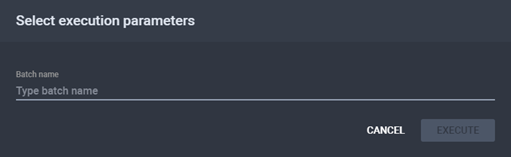
 Run for the
Batch Delivery Report smart
agent. The Select Execution Parameters
dialog is displayed.
Run for the
Batch Delivery Report smart
agent. The Select Execution Parameters
dialog is displayed.
The Select Execution Parameters Dialog
Smart Agent Progress
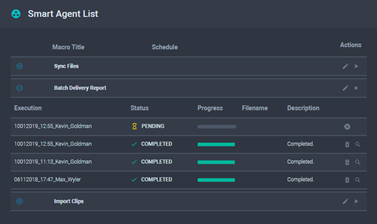
 View
Batch Report E-Mail. The Batch
Report E-Mail dialog is displayed.
View
Batch Report E-Mail. The Batch
Report E-Mail dialog is displayed.
The Batch Report E-Mail Dialog
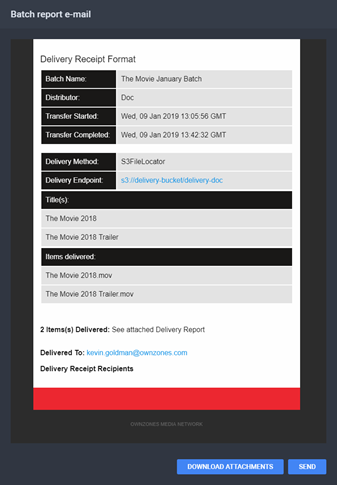
Note: To receive an e-mail of with the content of the report, you must set the E-mail Report Recipients in the Platform Details page for the platform used to deliver the batch. See Adding E-mail Addresses.
Received E-Mail
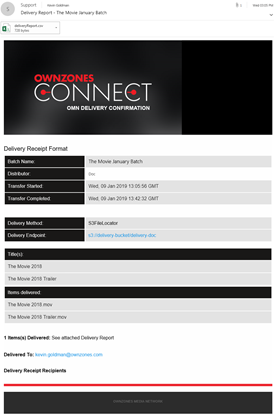
- File Name
- Designation
- MD5 Hash
- Size
- Destination Path
- Batch Name
- Job Name
- Job Status
- Delivery Date
- Package Template
- Operator Name