Running an Import Clips Smart Agent
To run an Import Clips smart agent:
- From the Smart Agent List menu, click
 Run for the
Import Clips smart agent.
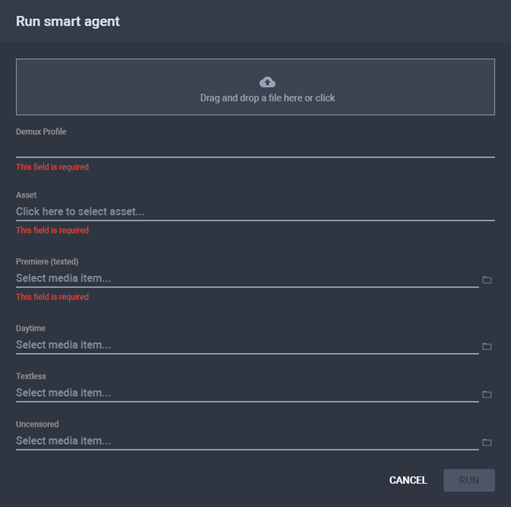
The Run Smart Agent dialog
is displayed.
Run for the
Import Clips smart agent.
The Run Smart Agent dialog
is displayed.
The Run Smart Agent Dialog
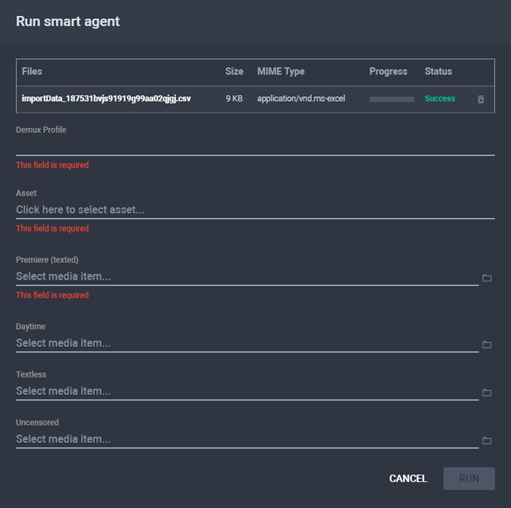
- Browse for the CSV file you want to import. The file is uploaded.
CSV Uploaded
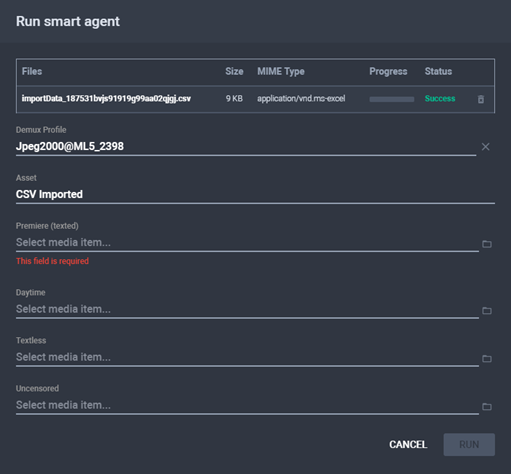
- Choose a Demux Profile.
- Click the Asset field. The Select
Asset dialog is displayed.
The Select Asset Dialog
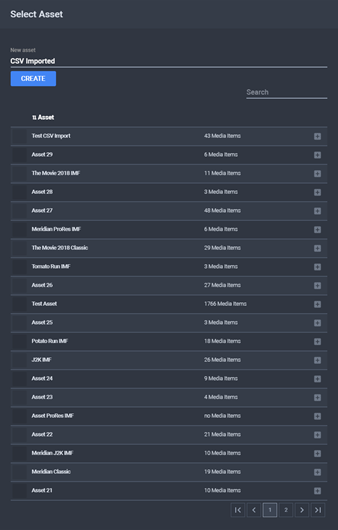
- Choose an asset and click
 Attach
or type an asset name and click Create.
Attach
or type an asset name and click Create.
Set Demux Profile and Asset
- Click
 Browse
for the Premiere (Texted) field. The Select Media Item dialog is displayed.
Browse
for the Premiere (Texted) field. The Select Media Item dialog is displayed.
The Select Media Item Dialog
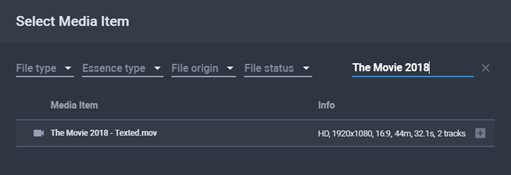
- Search for the source file that contains the texted version of
the movie, then click Add.
- Additionally, repeat steps 6 and 7 for the Textless,
Daytime, and Uncensored
versions.
Ready to Run
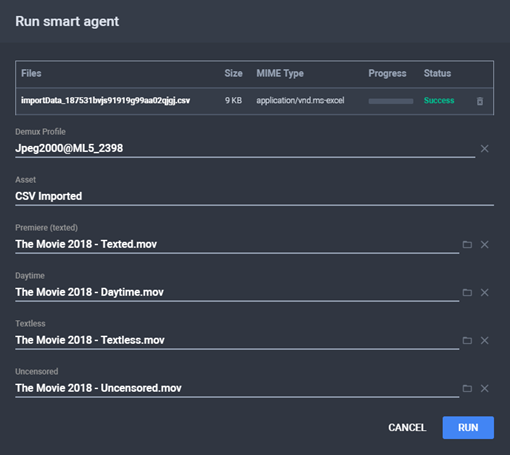
- Click Run. The workflow starts the
execution.
- Once the workflow is completed, click
 Expand to see the workflow details of the task.
Workflow Completed
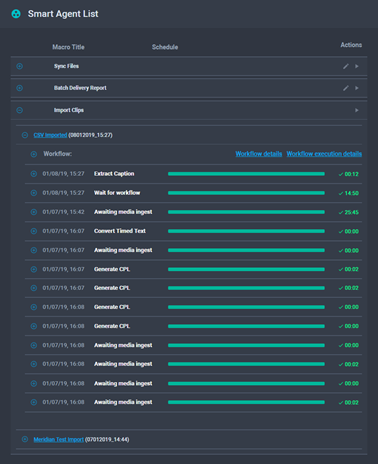
- Click the name of the task to view the resulting asset. The Asset Details page > Compositions
tab is displayed.
The Compositions Tab
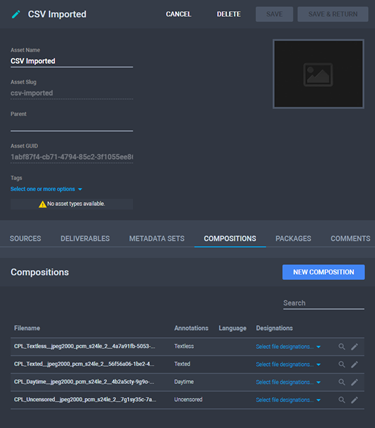
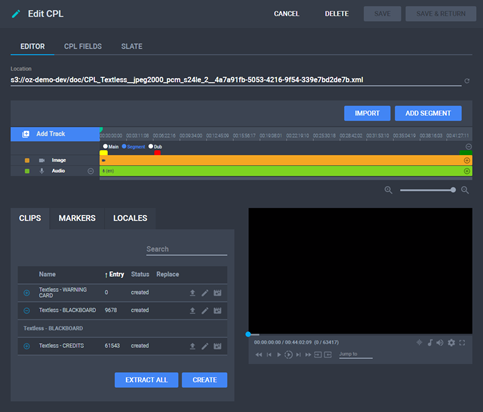
- Open a CPL and see if the clips were correctly created.
CPL with Created Clips
- Repeat step 12 for the other generated CPLs.
- You may now Extract and Replace
clips as necessary. See The Clips
Section.
See
Also